CloudStream APK
At a glance
Table of Contents
ShowHide
What is CloudStream?
CloudStream is a free, open-source video app for Android. Here is the key thing to understand: it plays video, but it does not come with any video.
- You install the app and the home screen is empty.
- You then add a repository, which is just a list of add-ons.
- From that list you install extensions. Each extension connects the app to one source.
- Only then does content show up.
That sounds like extra work, and it is. But it is also the point:
- Normal streaming apps give you a fixed library that someone else picked.
- CloudStream gives you nothing, and you build the library yourself.
- The app stays small and fast because it is only a player, a link finder and a downloader.
Who makes it:
- Built by the recloudstream community on GitHub.
- Released under the GPL-3.0 licence.
- No company owns it. No ads. No accounts. No paid version.
- Anyone can read the code, report a bug or send a fix.
It is not on the Google Play Store, so you install it as an APK file. Plenty of open-source Android apps work this way. Just make sure you know where your file came from – we cover that in how to check your APK is real.
What CloudStream is NOT
Most guides jump straight to a feature list. It helps more to clear up what this app does not do, because nearly every support question comes from something on this list.
- It is not a content library. CloudStream stores no movies, no episodes, no files. An empty screen after install is normal, not a bug.
- No website owns it. Any site calling itself the “developer” is not telling the truth. The developer is the recloudstream community.
- There is no iOS version. No iPhone app, no iPad app, no IPA file. If a site offers “CloudStream for iOS”, it is offering you something else.
- There is no mod or premium APK. Everything is already free, so a mod has nothing to unlock – only something to hide.
- It is not a VPN. It does not hide your traffic or your IP.
- It is not a Kodi add-on. It is its own Android app with its own plugin system.
- The app does not check extensions. Extensions are made by other people. Some are great. Some break in a week and never get fixed.
How CloudStream actually works
Once you understand the chain, troubleshooting gets much easier. There are four parts:
Why this matters:
- The repository holds no content. It is only an index – a list of what exists and where to get it.
- The extension does the real work. It knows where a site’s search page is and how to pull a playable link out of it.
- The app never touches the source website directly. The extension does.
- So when a source site changes its layout, that extension stops working. The app is fine. The repo is fine. One provider just goes quiet until a volunteer updates it.
Knowing which layer broke tells you what to do: update an extension, switch repositories, or just ignore it and use a different provider.
Key features
Free and open source
- Full source code is public under GPL-3.0.
- Nothing is hidden, so anyone can check what the app does on your device.
No ads inside the app
- No banners, no pop-ups, no video ads.
- It is a volunteer project, so there is no ad business behind it.
- Note: the source websites an extension reads may run their own ads on their own pages. You do not see those in the app.
No account needed
- No sign-up, no email, no phone number.
- Your library and watch history stay on your device.
You build your own library
- Install 3 extensions or 30. Your choice.
- Remove anything you stop using.
- Nothing gets pushed into your home feed.
Built-in downloads
- Save titles to your device for offline watching.
- Pick your own download folder.
- Queue downloads and select several episodes at once.
Quality options
- Switch resolution mid-playback when the source offers more than one.
- The app does not upscale – quality depends on the source.
Built-in video player
- Swipe gestures for brightness and volume.
- Pinch to zoom, change aspect ratio, adjust speed.
- No extra player needed.
External player support
- Prefer VLC or MX Player? Hand the stream over to them instead.
Source priority
- Rank your providers so the fast, reliable ones get checked first.
- One of the most useful settings in the app, and one of the least used.
Strong subtitle control
- Search and load subtitles inside the player.
- Change font, size, colour, outline, background and position.
- Fix sync problems with a live offset slider.
Anime tracker sync
- Connect a tracking service and your episode progress updates as you watch.
- No manual list editing.
Chromecast
- Cast to your TV and use your phone as the remote.
Android TV and Google TV
- Proper big-screen layout with real remote navigation.
- Not just a stretched phone app.
Themes and layout
- Pick phone, TV or emulator layout manually.
- Choose a theme colour, light/dark/system mode.
- Resize posters and hide parts of the interface you never use.
Library organisation
- Mark titles as Watching, Completed, On Hold, Dropped or Plan to Watch.
- Keep favourites and a continue-watching row.
New episode alerts
- Tap the bell icon on any ongoing series to subscribe.
- The app checks for new episodes and tells you when one drops.
- Useful for weekly anime and running drama seasons.
Share titles
- Send a title to a friend from the share icon on its detail page.
- Shares the title reference, not a media file.
Separate providers per content type
- You can pick different providers for movies, TV series and anime.
- So your anime sources do not clutter your movie results, and the other way round.
Audio track switching
- Where a source offers more than one audio track, you can switch language mid-playback.
- Covers dubbed anime, dual-audio films and regional dubs.
Backup and restore
- Export settings, library and repo list to a file.
- Restore it later on a new device.
Torrent streaming
- Supported where an extension provides it.
Software decoding
- If a video will not play, force software decoding.
- Fixes a lot of black-screen problems on older phones.
Many languages
- The interface is translated by the community.
- Pick your language on first launch, change it any time.
Active development
- Frequent releases.
- Bugs tracked in public on GitHub.
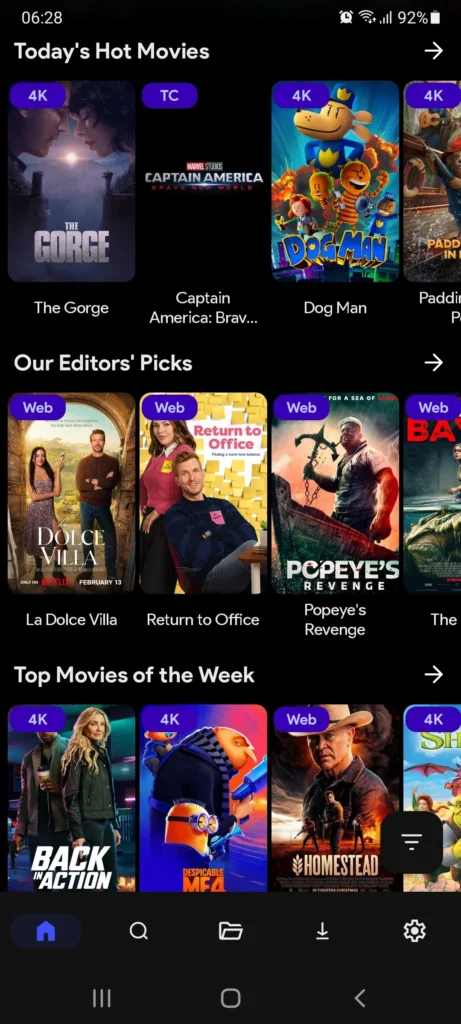
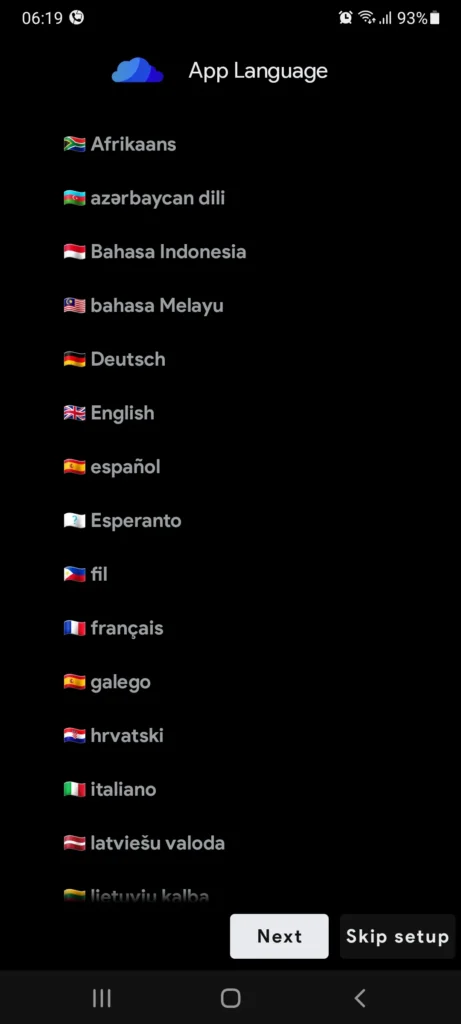
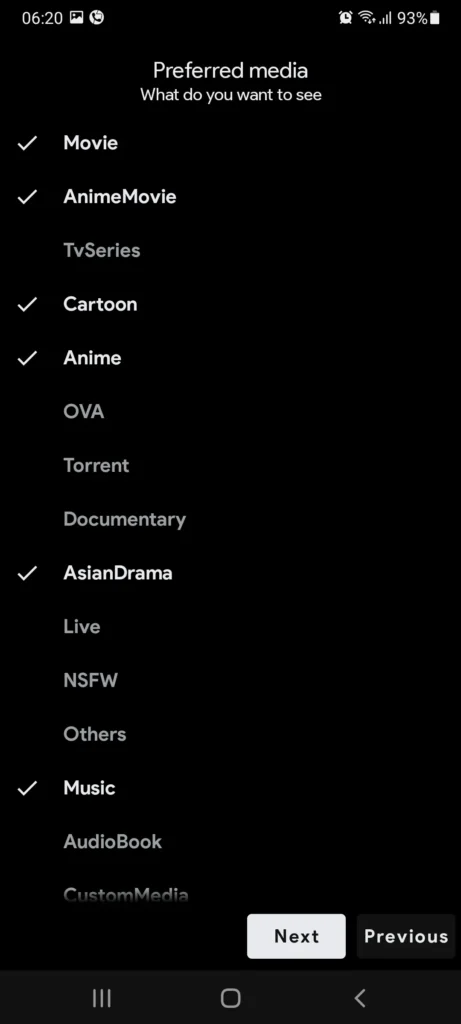
Screenshots
Requirements and compatibility
Before you install, check these:
- Android 5.0 (Lollipop) or higher – older versions will not run current builds.
- About 150 MB free space for the app, plus more if you download videos.
- Permission to install unknown apps for your browser or file manager.
- A stable internet connection – streaming quality depends on your connection and the source, not the app.
Compatibility matrix
| Device / platform | Supported | Notes |
|---|---|---|
| Android phone | ✅ Yes | Main platform |
| Android tablet | ✅ Yes | Full support |
| Android TV | ✅ Yes | Dedicated TV layout |
| Google TV | ✅ Yes | Same as Android TV |
| Fire TV / Firestick | ✅ Yes | Sideload with Downloader |
| Nvidia Shield / Mi Box | ✅ Yes | Normal Android TV install |
| Windows PC | ⚠️ Indirect | Emulator or WSA |
| macOS | ⚠️ Indirect | Emulator |
| ChromeOS | ⚠️ Partial | Only Chromebooks that run Android apps |
| iPhone / iPad | ❌ No | No iOS build exists |
| Samsung Tizen TV | ❌ No | Not Android-based |
| LG webOS TV | ❌ No | Not Android-based |
Got a Tizen or webOS TV? Your options are a cheap Android TV stick, or casting from your phone.
Download CloudStream APK
The current stable release is v4.8.0. Use the latest build unless you have a good reason not to – older builds slowly stop working as source websites change.
Older versions
Sometimes an older build makes sense:
- A new release has a bug on your specific device.
- An extension you need has not been updated for the newest plugin system.
Our version archive keeps earlier builds with their notes so you can roll back cleanly. Just do not go too far back – old builds lose extension support and miss security fixes.
How to install CloudStream
On an Android phone or tablet
Step 1 – Allow installs from your browser
- Open Settings → Security & privacy → Install unknown apps.
- The exact path changes by brand, so search “unknown apps” in Settings if you cannot find it.
- Pick the browser you will download with.
- Turn on Allow from this source.
Step 2 – Download the APK
- Tap the download button on this page.
- Wait for it to finish. Do not open a half-downloaded file.
Step 3 – Install
- Open your Downloads folder or the notification.
- Tap the APK, then tap Install.
- Play Protect may warn you because the app is not from the Play Store. Review it and continue.
Step 4 – Set it up
- Open CloudStream.
- Pick your language and layout.
- Now go to adding a repository. The app does nothing until you do.
On Android TV or Google TV
- Install Downloader or a file manager from the Play Store on your TV.
- Go to Settings → Device Preferences → Security & restrictions and allow unknown apps for that tool.
- Open the tool, type the download URL, and get the APK.
- Install it, then open CloudStream from your apps row.
- Tip: use a shortcode instead of a full URL when adding repos. Typing long links with a remote is painful.
On Firestick / Fire TV
- Go to Settings → My Fire TV → About and click the device name seven times. This turns on Developer Options.
- Go back to My Fire TV → Developer Options and turn on Install unknown apps.
- From the home screen, search for and install the Downloader app.
- Give Downloader permission to install unknown apps.
- Open Downloader, enter the APK URL, download and install.
- Open CloudStream and finish setup.
Older Firesticks: high-quality streams can stutter. Drop the quality one step, or turn on software decoding.
On Windows PC
CloudStream is an Android app, so your PC needs to run Android. Two ways:
Emulator (works on any PC)
- Install BlueStacks, LDPlayer or MEmu.
- Drag the APK onto the emulator window.
- It installs automatically. Open it from the emulator’s app drawer.
Windows Subsystem for Android
- If your Windows version supports WSA, sideload the APK using ADB.
- Runs better than an emulator, but takes more setup.
Full guide: CloudStream for PC.
On Mac and Chromebook
Mac
- Use an Android emulator that supports macOS.
- Apple Silicon Macs have fewer emulator choices than Intel Macs.
Chromebook
- Works only if your Chromebook runs Android apps.
- Turn on Linux/developer mode, then sideload the APK.
- Many school and office Chromebooks block this.
On iPhone or iPad
There is no CloudStream for iOS. None. No official build, no unofficial build, no IPA.
If a website offers you one, it is not CloudStream. See our iOS alternatives guide instead of installing something unknown.
How to check your APK is real
This takes about thirty seconds and it is the best thing you can do to stay safe when sideloading. CloudStream is open source, so official builds come with checksums. That means you can prove a file is untouched instead of just hoping.
- Check the package name. Go to Settings → Apps → CloudStream → App details. It should say com.lagradost.cloudstream3. A different package name means a different app.
- Check the file size. Compare it with the size listed for that release. A big difference is a warning sign.
- Check the SHA-256 hash.
- Windows: run
certutil -hashfile cloudstream.apk SHA256in Command Prompt. - Mac or Linux: run
shasum -a 256 cloudstream.apk. - Compare the result with the hash published for that release.
- Windows: run
- Check the signature if you want to be thorough. Use APK Analyzer or
apksigner verify --print-certs. All real builds share one signature – which is also why a fake build cannot install as an update over a real one. - Skip anything labelled “mod” or “premium”. There is no paywall to remove.
CloudStream repositories and extensions
A repository is a list of extensions. Add it once, then install, update or remove extensions from it whenever you like.
You can add a repo two ways:
- Paste the full URL, or
- Type the short shortcode, which the app expands for you. Much easier on a TV remote.
Repository list
31 repositories · 20+ languages · updated monthly
Tap the copy icon beside any shortcode to copy it, then paste it straight into the app’s Add repository box. Use the filter buttons to narrow the list to your language.
| Repository | Focus / language | Shortcode | Source |
|---|---|---|---|
| CloudStream Providers (Official) | General, English | cspr | recloudstream/extensions |
| English (Codeberg) | English | 6wyw1RnS | codeberg cloudstream |
| Multilingual | International mix | Bwyw1S3k | codeberg cloudstream |
| Mega Repository | General, large | megarepo | self-similarity/MegaRepo |
| Phisher Repo | Anime, Asian drama | phisherrepo | phisher98 |
| Megix / CSX | Hindi & English | csx | SaurabhKaperwan/CSX |
| CNC Verse | Multi-language | cncv | NivinCNC |
| Hexated | General | mwyw140i | codeberg cloudstream |
| doGior’s Had Enough | General | gior | doGior |
| IndoStream | Indonesian | indos | TeKuma25 |
| Italian Providers | Italian | ipr | Gian-Fr |
| German Providers | German | gpr | Bnyro |
| French | French | jwyw2fJc | codeberg cloudstream |
| Arabic | Arabic | Jwyw1ZiR | codeberg cloudstream |
| Arabico | Arabic | 0wF96Vs1 | community |
| Turkish (Kekik) | Turkish | KekikAkademi | keyiflerolsun |
| Turkish (Kraptor) | Turkish | kraptorcs | Kraptor123 |
| DiziPal & TabiiSpor | Turkish, sports | sarapcanagii | sarapcanagii |
| CakesTwix | Ukrainian | cakes | CakesTwix |
| Redowan’s BDIX | Bangladeshi / BDIX | redowan | redowan99 |
| Likdev | Tamil | bwyw0Mcv | codeberg cloudstream |
| CloudStream Vietnamese | Vietnamese | viet | GitLab: tearrs |
| Saimuel | Portuguese / Brazil | saim | saimuelbr |
| Luna712 | General | luna712 | Luna712 |
| CuxPlug | General | CuxPlug | ycngmn |
| Horis | General | Owyw2lbO | codeberg cloudstream |
| Storm | General | Swyw03Nc | codeberg cloudstream |
| Avocado | Spanish | aguaco | community |
| FStream | French | fstream | community |
| Crunchyroll | Anime | wwyw2e4x | codeberg cloudstream |
Two things worth knowing:
- Check if a repo is still alive. These are volunteer projects and some go quiet. Before you blame the app, check whether the repo has had any activity in the last few months. We track this on our repository status page.
- More repos is not better. Twenty repositories makes search slower and results messier. Three or four good ones covering the languages you actually watch will beat a bloated setup every time.
How to add a repository
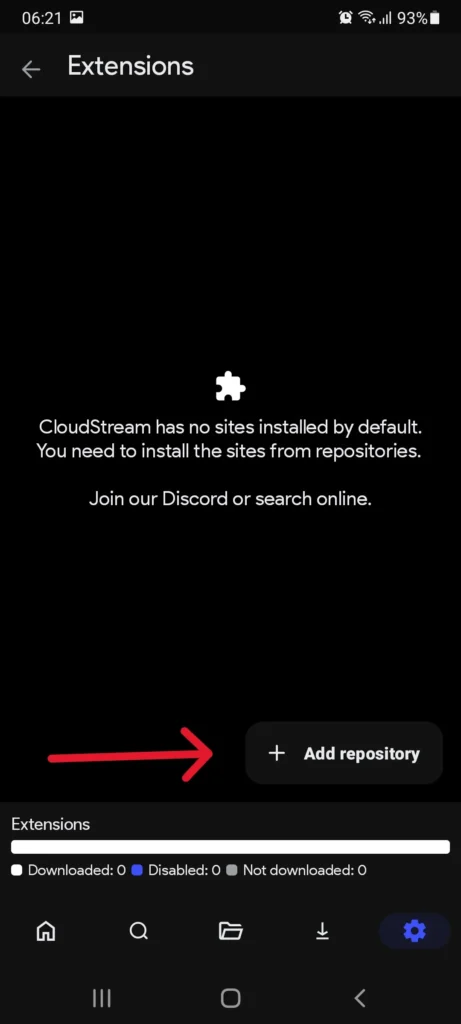
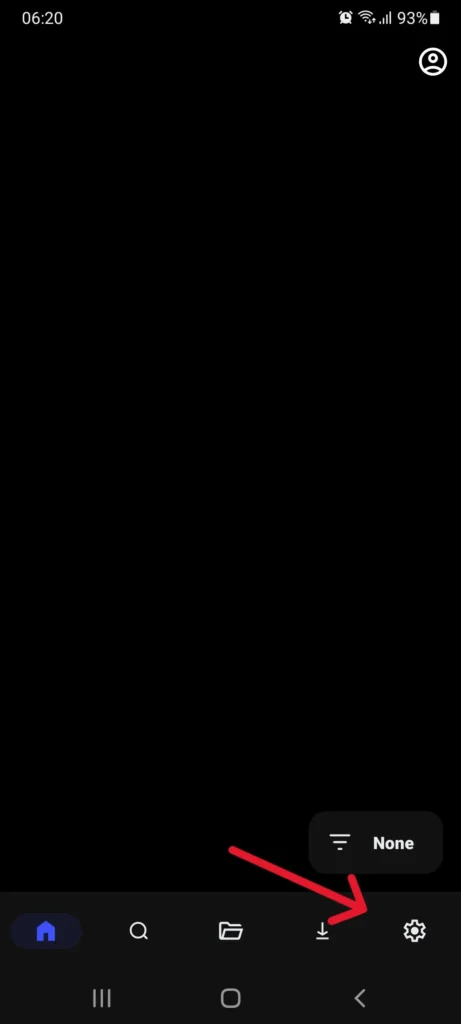
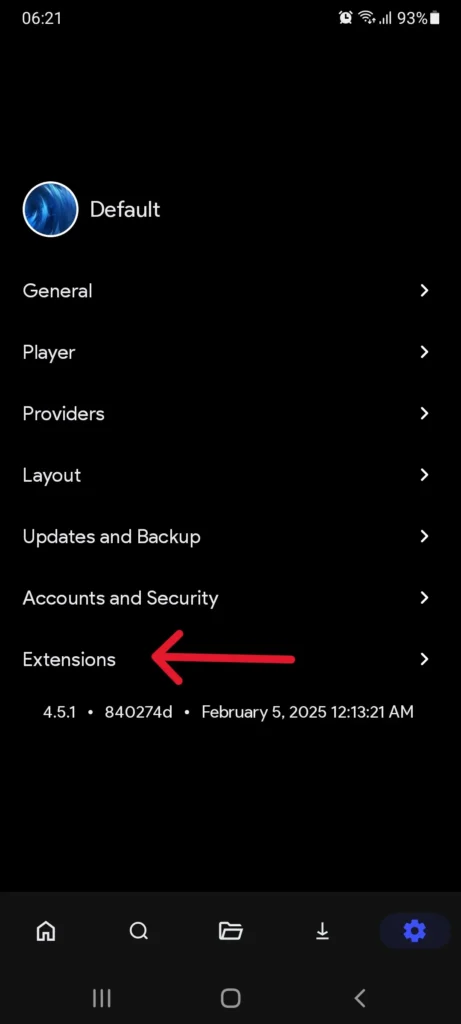
- Open CloudStream and tap the Settings icon.
- Tap Extensions.
- Tap Add repository (the floating button at the bottom right).
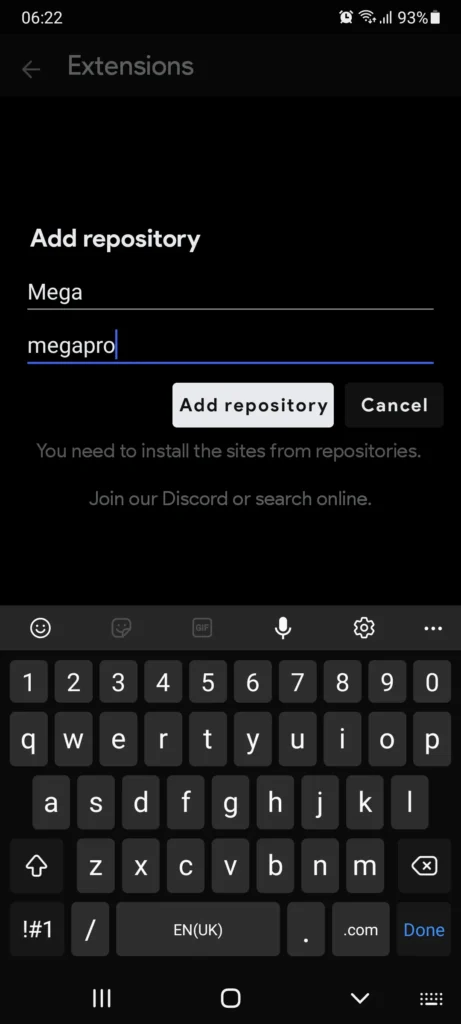
- Enter a name (optional – just for you) and paste the URL or type the shortcode.
- Tap Add repository.
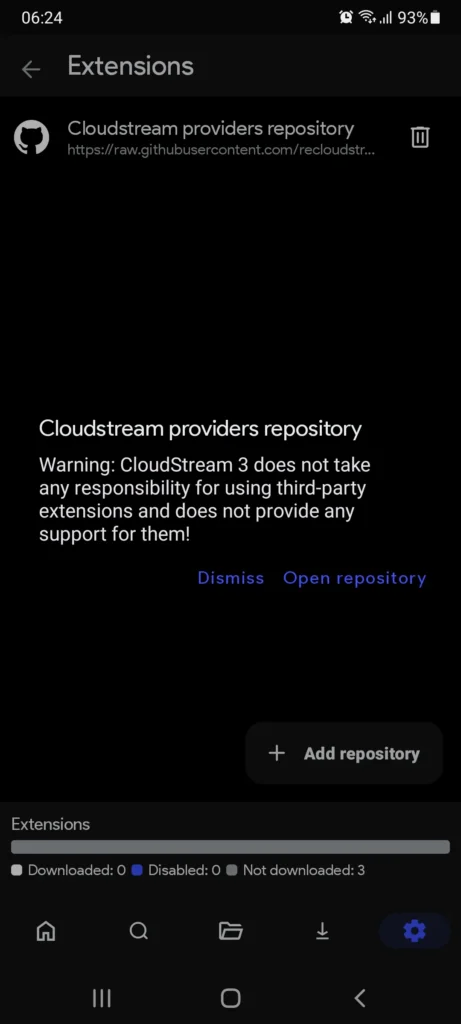
- A warning pops up saying third-party extensions are not checked by the CloudStream team. Read it, then tap Open repository.
- The extension list loads.
Nothing happened? See repository won’t add.
How to install extensions
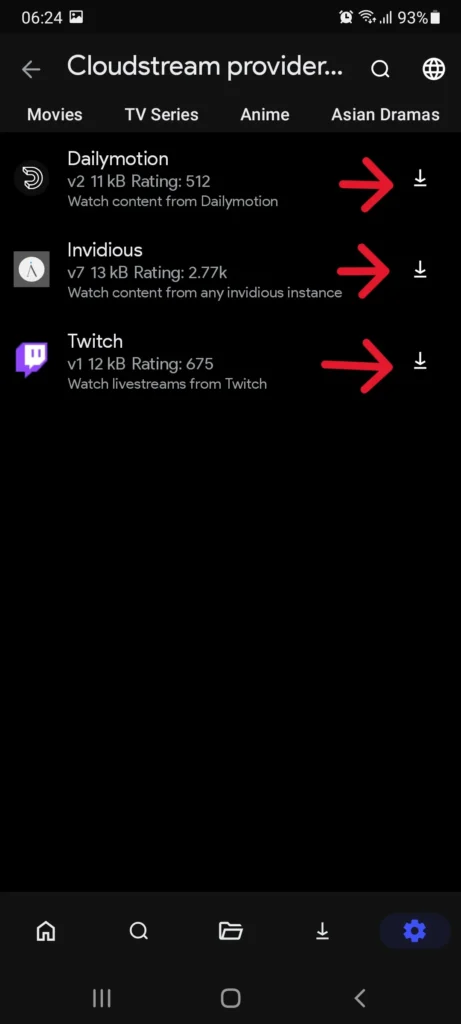
- Browse or search the repository’s extension list.
- Tap the download icon next to any extension.
- Installed ones show a checkmark or an uninstall icon.
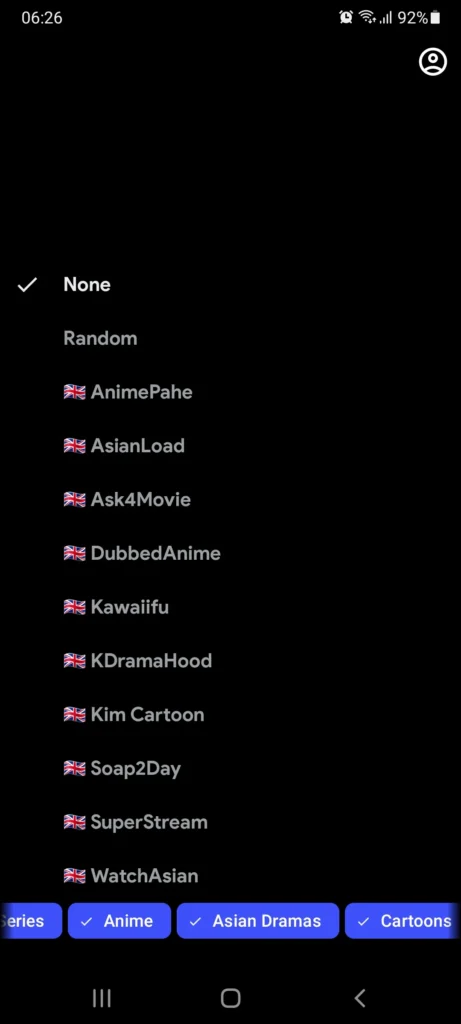
- Go back to the home screen. The button that said None now lists your providers.
- Tap one to browse it.
- Go to Settings → Extensions and check for updates often.
- Most “nothing loads” complaints are just old extensions.
- You can turn on automatic extension updates so this happens on launch.
- Uninstall from the same screen.
- Delete anything that has been failing for weeks. Dead providers slow down global search because the app waits for them to time out.
Browsing, searching and downloading
- Tap the floating button on the home screen (it says None before setup).
- Each provider has its own home feed and categories.
- The search icon inside a provider searches only that provider. Faster.
- The Search tab at the bottom searches every installed extension at once. More thorough.
- Filter global results by movie, series, anime or documentary to cut through the noise.
- Open a title to see the description, cast, rating and episode list.
- Press Play. The app looks for links and lists them by quality and server.
- If one link buffers, go back and pick another. This is normal with aggregated sources.
- The download button sits under the play button on the title page.
- For series, use multi-select to queue several episodes.
- Manage everything in the Downloads tab – pause, resume or delete.
- Files go to your Downloads folder by default (changeable in settings) and play in any video player.
Feature setup guides
Chromecast
- Make sure your phone and Chromecast are on the same Wi-Fi.
- Start playing something.
- Tap the cast icon at the top of the player.
- Pick your device.
- The TV takes over playback and your phone becomes the remote.
No cast icon? The stream format may not support casting, or the app may not have local network permission. Try a different source link first.
Subtitles – language, look and sync
- Change the language: in the player, tap the gear icon → Subtitles, then pick a track or search for one.
- Change the look: go to Settings → Player → Subtitle settings. You can change font, size, colour, outline, background and position.
- Fix bad sync: use the offset control in the subtitle menu.
- Positive numbers delay the subtitles.
- Negative numbers move them earlier.
- The live preview shows the change as you slide, so you do not have to guess.
Audio tracks and dubbed versions
Subtitles are not the only language option. Many sources carry more than one audio track.
- Start playing, then tap the gear icon → Audio.
- Any extra audio tracks the source provides are listed there.
- Pick the language you want. Playback continues from the same point.
What you will realistically find:
- Anime – the widest dub coverage by far. English dubs are common, and some sources carry regional dubs too.
- Films and series – dual-audio releases show up regularly, but coverage is patchy and unpredictable.
- Regional dubs – usually come from language-specific extensions rather than general ones.
If the Audio menu only shows one track, that source only has one. Back out and try a different provider for the same title – dub availability changes completely from source to source.
Anime tracker sync
- Go to Settings → Accounts.
- Pick your tracking service and log in through the browser prompt.
- Approve CloudStream.
- Done – your episode progress now updates as you watch, and your existing list shows up inside the app.
This is one of CloudStream’s best features and almost nobody explains it. If you already keep a watchlist, this removes all the manual updating.
Backup and restore
Do this before you change phones, install a big update, or clear app data.
- Backup: Settings → Backup → Create backup. This saves your settings, library, watch progress and repo list to a file. Store it somewhere outside the app folder – cloud storage or your PC.
- Restore: Settings → Backup → Restore backup, then pick your file.
One thing to know: the backup saves your repository list, not the extensions themselves. After restoring, reinstall the extensions from those repos.
External player (VLC, MX Player)
- Go to Settings → Player.
- Switch the default player from internal to external, or choose Ask every time.
- Now when you press play, Android asks which player to use.
Useful if you want better audio track handling or your device struggles with certain formats.
Source priority
- Go to Settings → Extensions → Provider priority (the name changes slightly between builds).
- Drag your providers into the order you want.
- The app checks the top ones first when looking for links.
Put your two or three most reliable providers at the top. Links resolve noticeably faster.
Tips for smooth streaming
Installing the app is the easy part. These habits are what separate a setup that works for months from one you fight with every week.
- Update the app when a new stable build lands.
- Update your extensions separately – this is the single biggest fix for “nothing is loading”.
- Turn on automatic extension updates so it happens on launch.
- Three or four maintained repositories beat twenty dead ones.
- Delete extensions that have been failing for weeks. The app waits for dead providers to time out, which slows every search.
- Set provider priority so your best sources get checked first.
- If a link buffers, back out and pick a different server. This is normal, not a fault.
- Drop one quality step if your connection is unstable.
- Turn on software decoding if video plays as a black screen.
- Clear the app cache occasionally – it fixes odd interface behaviour.
- Download episodes before a flight or commute instead of hoping for signal.
- Take a backup before every major update.
- On older Firesticks and budget TV boxes, stick to lower bitrates.
- On phones, long sessions drain battery faster than a normal streaming app – plug in for a binge.
- On TVs, use shortcodes instead of full URLs. Typing links with a remote is misery.
CloudStream for anime fans
Anime is where CloudStream is at its strongest, and it is worth explaining why rather than just claiming it.
What actually makes it good for anime:
- Tracker sync. Connect an anime tracking service once and your episode progress updates as you watch. No other part of the app saves as much manual effort.
- Sub and dub in one place. The audio track menu lets you switch between them per episode instead of hunting for a separate release.
- Proper subtitle control. Fansub timing is often slightly off. The live offset slider fixes it in seconds.
- Anime-focused extensions. Several repositories specialise in anime and Asian drama, so you get seasonal coverage rather than a thin general catalogue.
- Watch status that fits how anime works. Plan to Watch, On Hold and Dropped map neatly onto long-running series and seasonal backlogs.
- New episode alerts. Subscribe to an ongoing series with the bell icon and you get told when the next episode appears.
Setting up an anime-first configuration:
- Install one anime-specialised repository plus one general repository as a fallback.
- In provider settings, assign your anime extensions specifically to the anime category.
- Connect your tracker in Settings → Accounts.
- Set provider priority so your most reliable anime source sits at the top.
A realistic expectation: anime sources change more often than any other category, so anime extensions break more often too. Keeping two working sources installed rather than one saves you most of the frustration.
Live TV, sports and other content
CloudStream is usually described as a movies-and-series app, but the extension system does not actually limit it to that. What you can access depends entirely on which extensions exist.
Content types you may find, depending on your extensions:
- Movies and TV series
- Anime, including OVAs and specials
- Asian drama – Korean, Chinese, Japanese, Thai
- Cartoons and kids’ content
- Documentaries
- Live TV channels
- Sports streams
Important caveats, because most sites skip these:
- Live TV and sports are not built into the app. They only appear if you install an extension that provides them. The core app has no channel list.
- Live sources are the least stable category. Channels change addresses constantly, so live extensions break more often than on-demand ones.
- Live content cannot be downloaded. The download feature works on on-demand titles only.
- Live streams are the most likely to have licensing problems. Sports rights in particular are tightly held and enforced. Be aware of what you are connecting to.
If live TV is your main goal, CloudStream is probably the wrong tool. It is built as an on-demand player, and live works as a side effect of the extension system rather than a designed feature.
Common errors and how to fix them
1Error 1: “No links found” / nothing plays
The most common complaint. Almost always an extension problem, not an app problem.
- Update all extensions: Settings → Extensions → Update all.
- Try a different provider for the same title. One dead scraper does not mean they are all dead.
- Check whether that repository is still being maintained.
- Some sources are region-blocked, so a VPN may change the result.
- Restart the app to clear a stuck session.
2Error 2: Home screen is empty after install
Not a bug. The app ships with no content.
- Add a repository.
- Install at least one extension.
3Error 3: Repository won’t add
- Make sure the URL points to the raw JSON file, not a GitHub web page. Raw links contain raw.githubusercontent.com or /raw/.
- Use the shortcode instead. It removes typing mistakes completely.
- Open the URL in a browser to check the host is up and the repo still exists.
- Some networks and DNS providers block GitHub raw content. Try mobile data instead of Wi-Fi.
4Error 4: “App not installed” or parse error
- The download was incomplete or damaged – delete it and download again.
- Your Android version is below 5.0.
- Another CloudStream build with a different signature is already installed. Uninstall it first, but back up your data before you do.
- Not enough storage space.
5Error 5: Video buffers forever or shows a black screen
- Pick a lower quality in the player’s gear menu.
- Try a different server link for the same title.
- Turn on software decoding in player settings. This fixes a big share of black-screen problems.
- Try playing it in VLC instead.
6Error 6: Extensions disappeared after an app update
- This happens when the plugin system changes between major versions.
- Open Settings → Extensions – your repositories should still be listed.
- Reinstall the extensions from them.
- A backup protects you from exactly this.
7Error 7: Downloads stuck at 0% or failing
- Check storage permission in Android’s app settings.
- Free up space on your device.
- The source may not allow downloads. Try another provider.
- Change the download folder – some phones block writing to certain paths.
8Error 8: App crashes on Android TV or Firestick
- Low-memory devices struggle with too many extensions. Remove the ones you do not use.
- Force the TV layout in Settings → Layout.
- Clear the app cache.
- First-generation Firesticks have real hardware limits. High-bitrate 1080p is often too much for them.
9Error 9: Cast icon missing
- Phone and Chromecast must be on the same network.
- Give the app local network permission.
- Not every stream can be cast. Try a different link.
10Error 10: Subtitles out of sync
- Use the offset control described in subtitle setup.
- If one subtitle file is unusable, search for a different one inside the player.
Still stuck? Our error index covers all of these in more detail, plus rarer cases.
What’s new in v4.8.0
Recent releases have focused on player polish and downloads rather than big new features. Changes across the recent release cycle include:
- Swipe gestures for brightness and volume
- Pinch to zoom and aspect ratio control during playback
- Live preview when adjusting subtitle offset
- Subtitle width and position options
- Multi-select downloads and a proper download queue
- System dark theme support and refreshed themes
- Software decoding toggle for problem videos
- Better support for external players
- Torrent streaming for compatible sources
- Memory leak fixes and general stability work
For the exact, commit-by-commit changelog, check the project’s GitHub releases page – or our full changelog archive for a readable version-by-version history.
What’s coming next
CloudStream has no marketing roadmap, because it is a volunteer project rather than a company product. What it does have is a public issue tracker and open pull requests, so the direction of development is visible to anyone who looks.
Where recent effort has been going:
- Player refinement – gestures, zoom, decoding options and external player handling have all seen steady work.
- Download management – queuing and multi-select landed recently, and download handling continues to get attention.
- Extension API stability – reducing how often extensions break between app versions is an ongoing goal.
- TV interface polish – focus handling and remote navigation on Android TV.
- Translations – community contributors keep adding and improving interface languages.
What we would treat carefully:
Several websites publish confident lists of “upcoming features” – cross-device sync, AI recommendations, direct link sharing. We cannot verify any of these, and none of them appear as committed work in the public repository. Treat those lists as guesses, not roadmaps.
How to actually track development:
- Watch the GitHub releases page for stable builds.
- Read open issues and pull requests to see what is genuinely being worked on.
- Follow the community Discord for pre-release discussion.
We update this page when a new stable release lands, and our changelog archive keeps the version-by-version history.
How to update
You usually do not need to uninstall first, whatever other guides tell you.
- Download the latest APK.
- Open it and tap Install.
- Android replaces the old version in place.
- Open the app.
Your settings, library, watch history and repositories all survive. Uninstalling first wipes all of it.
Only uninstall first if Android refuses the update – that happens when the two builds are signed with different keys. Back up before you do.
After updating, open Settings → Extensions and update your extensions too. App updates and extension updates are separate things.
How to uninstall or reset
- Settings → Apps → CloudStream → Storage → Clear cache.
- Try this first for slow performance or strange interface behaviour.
- Wipes settings, library and installed extensions.
- Back up first.
- Long-press the app icon → Uninstall, or remove it from Android’s app settings.
- Your downloaded video files are not deleted automatically. Delete them separately if you want the space back.
Is CloudStream safe and legal?
These are two different questions, so here are two different answers.
Is the app safe?
- Open source under GPL-3.0, so anyone can check what it does.
- Asks for a small set of permissions: internet, storage for downloads, and install permission for updates.
- No ad SDK and no tracking built into the core app.
- Where you got the file. A tampered APK from a random mirror can contain anything. Check the signature.
- Which extensions you install. Extensions are third-party code. Stick to repos the community actively maintains and talks about in public.
Is it legal?
- The app itself is legal. Building a media player with a plugin system is not against the law anywhere, and the project is hosted openly on GitHub.
- What you watch through it depends on the source. Some extensions connect to services that have permission to distribute – public-domain archives, free ad-supported services, official APIs. Others connect to sites that do not.
- The app does not tell the difference, and neither do we. Copyright law varies a lot between countries.
- You are responsible for the extensions you install and what you watch. If you are unsure, stick to extensions pointing at licensed or public-domain material, and check the rules where you live.
We do not host, mirror or link to any media. We publish information about an open-source app. See our DMCA policy and disclaimer.
Pros and cons
- Free, with no subscription, trial or paid tier
- No ads inside the app
- No account, no email, no tracking by default
- Fully open source under GPL-3.0
- You decide exactly which sources appear
- Offline downloads with a real queue
- Excellent subtitle control, including sync fixing
- Anime tracker sync built in
- Works properly on Android TV, not just phones
- External player support
- Backup and restore for moving devices
- Small and light, because the content layer is optional
- Empty on first launch – setup is required
- The repo/extension idea confuses new users
- Extension quality and uptime vary and are outside the developers’ control
- Extensions break when source websites change, sometimes for weeks
- No iOS version
- Not on Google Play, so you sideload and update manually
- Play Protect warnings can worry people new to sideloading
- Some sources are region-blocked
- No official support – community channels only
- Whether your use is legal depends on the choices you make
- Uses more battery than a normal streaming app on long sessions
What users actually say
Rather than posting made-up testimonials, here is an honest summary of the themes that come up again and again in public community discussion – GitHub issues, the Discord server and Android forums. The praise and the complaints are both worth knowing before you install.
- The absence of ads. This is the single most repeated point. People who have used other free streaming apps describe the difference as dramatic.
- No account, no email. Frequently mentioned by privacy-conscious users as the reason they chose it.
- Subtitle control. Power users rate it above most commercial apps, especially the sync offset tool.
- The Android TV experience. Repeatedly described as feeling native rather than like a stretched phone app.
- Tracker sync. Anime viewers call this the feature that made them switch.
- How light it is. The app being small and quick gets mentioned often, particularly by people on older phones.
- The empty first launch. Easily the biggest source of confusion. Many new users assume the app is broken.
- Extensions breaking. The most common ongoing frustration. Sources go down, and fixes depend on volunteers.
- “No links found.” The single most reported issue, and almost always an extension problem rather than an app one.
- Setup difficulty. Repositories and shortcodes are a real learning curve for non-technical users.
- No iOS version. A recurring disappointment, and there is no sign of it changing.
- Play Protect warnings. Alarming for people who have never sideloaded before.
What this tells you: almost every complaint is about the extension layer, not the app. If you go in understanding that CloudStream is a player you configure rather than a service you subscribe to, most of the frustration disappears.
CloudStream vs other apps
| CloudStream | Stremio | Kodi | Typical OTT app | |
|---|---|---|---|---|
| Cost | Free | Free | Free | Subscription |
| Open source | Yes (GPL-3.0) | Partly | Yes (GPL) | No |
| Ads in app | None | None | None | On free tiers |
| Account required | No | Optional | No | Yes |
| Content model | Extensions | Add-ons | Add-ons | Fixed licensed library |
| Setup difficulty | Medium | Easy | Hard | Very easy |
| Android TV | Native | Yes | Yes | Yes |
| iOS | No | Yes | Yes | Yes |
| Desktop | Emulator only | Native | Native | Native / web |
| Offline downloads | Yes | Limited | Depends on add-on | Yes, plan dependent |
| Subtitle control | Extensive | Good | Extensive | Basic |
| Anime tracker sync | Yes | Via add-on | Via add-on | No |
| Content guaranteed | No | No | No | Yes |
| Best for | Android users who want control | Cross-platform simplicity | Home-theatre users | People who want zero setup |
The honest version:
- Want to press play and have something appear? A paid streaming service is better, and CloudStream will annoy you.
- Want an open, configurable Android app where you decide what sources exist? CloudStream is one of the best-built options out there – as long as you accept that maintenance is part of the deal.
More detail: CloudStream vs Stremio · CloudStream vs Kodi · CloudStream alternatives
Glossary
Official links and community
- Source code: https://github.com/recloudstream/cloudstream
- Official extension repo: https://github.com/recloudstream/extensions
- Community wiki: the CloudStream community wiki
- Discord: the official recloudstream server
- Bug reports: GitHub Issues on the main repository
Reporting problems the right way:
- Bug in the app? Report it on GitHub with your device model, Android version and app version.
- One provider broken? Report it to that extension’s maintainer. The core team cannot fix third-party scrapers.
Frequently asked questions
Is CloudStream free?
Who makes CloudStream?
Why is my home screen empty after installing?
Is CloudStream on the Play Store?
Is there a CloudStream for iPhone?
Is there a mod or premium APK?
Does it work on Android TV?
Does it work on Firestick?
Can I use it on Windows?
What is the difference between a repository and an extension?
How many repositories should I install?
Why do I keep getting “no links found”?
Do I need a VPN?
Can I download for offline viewing?
Where do my downloads go?
Can I sync my anime list?
Can I back up my settings and library?
Do I need to uninstall before updating?
Does CloudStream show ads?
Does it collect my data?
Is CloudStream legal?
Which repository is best for anime?
Why did my extensions vanish after an update?
Can I use VLC or MX Player instead?
How do I fix subtitles that are out of sync?
Can I watch dubbed versions instead of subtitled?
Does CloudStream have live TV channels?
Can I watch sports on CloudStream?
Can I get notified when a new episode is out?
Can I use different providers for movies and anime?
Can I share a title with a friend?
Why do my anime extensions break more often than others?
Is there an official roadmap?
Final thoughts
CloudStream asks something of you that paid streaming apps do not: that you understand the thing you are using and set it up yourself. The empty home screen on day one is not a flaw. It is the app being honest that it has no opinion about what you should watch.
- No ads, no account, no tracking, no subscription
- Real control over sources, playback and subtitles
- Setup takes effort
- Extensions break, and nobody is obliged to fix them
If that trade sounds fine, then install it from a source you verified, add two or three well-maintained repositories, set up a backup, and you will have a media app that behaves exactly how you told it to.
If it does not sound fine, a paid streaming subscription will serve you better – and that is a perfectly sensible choice.